Our Short List of 3
All 5 Picks at a Glance
| Product | Specs | Action |
|---|---|---|
 AOC 24G2SP | Check price on Amazon | |
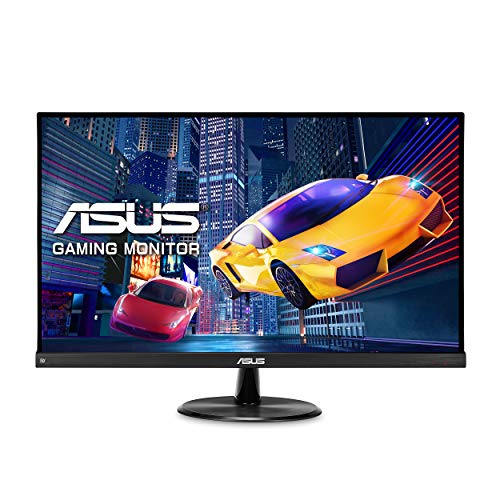 ASUS VP249QGR | Check price on Amazon | |
 LG UltraGear 24GN600-B | Check price on Amazon | |
 Samsung Odyssey G3 G30A | Check price on Amazon | |
 Gigabyte G24F 2 | Check price on Amazon |
Key takeaways
- Find the best monitors for RX 580 builds, from 144Hz and 165Hz FreeSync panels at 1080p to a VA option with deep contrast, plus setup and pairing tips.
The Radeon RX 580 remains a capable graphics card for Full HD gaming, and the monitor paired with it decides how much of that performance actually reaches the screen. A basic 60Hz office display holds the card back in fast games, while an oversized 4K panel asks for far more pixels than the RX 580 can drive at smooth frame rates. The sweet spot sits in between: a 24-inch monitor at 1920 by 1080 resolution, with a refresh rate of 144Hz or higher and AMD FreeSync support that matches the card exactly.
This guide collects five monitors that fit that formula, covering flat IPS panels for sharp color and wide viewing angles, a VA panel for deeper contrast in darker rooms, and stands that range from simple tilt bases to fully adjustable designs with height, swivel, and pivot. Every pick uses FreeSync over DisplayPort or HDMI, so screen tearing and stutter can be reduced without extra hardware. Read the buying advice first, then compare the individual models by panel type, refresh rate, and desk setup needs.
As an Amazon Associate, we earn from qualifying purchases.
How to Choose a Monitor for an RX 580
Resolution comes first. The RX 580 was built for 1080p gaming, and at 1920 by 1080 it can hold high frame rates in esports titles and respectable settings in larger games. A 1440p monitor can work for slower strategy, simulation, and older games, but demanding titles will often need lower settings to stay smooth. A 4K monitor is a poor match for gaming on this card. For most owners, staying at 1080p and spending on refresh rate and panel quality beats chasing extra pixels.
Refresh rate is the second decision. Moving from 60Hz to 144Hz makes motion noticeably clearer and mouse movement feel more direct, and the RX 580 can fill that rate in competitive games such as shooters, racing titles, and sports games. Panels at 165Hz add a small extra margin. There is little reason to pay for 240Hz with this card, because few games will reach that frame rate at useful settings.
FreeSync matters because the RX 580 is an AMD card. FreeSync lets the monitor change its refresh rate in step with the frame rate the card produces, which reduces tearing and softens judder when a game dips below the panel maximum. Look for FreeSync or FreeSync Premium in the specification, and connect with DisplayPort where possible, since that is the most reliable route for adaptive sync and the highest refresh rates. In the Radeon software, FreeSync needs to be switched on, and Windows display settings need to be set to the full refresh rate after installation.
Panel type shapes the picture. IPS panels offer the most accurate color and the widest viewing angles, which suits shared desks, photo work, and varied game scenery. VA panels trade some viewing angle and response speed for much stronger contrast, so blacks look deeper in films and darker scenes. Response time figures also need care: a listed 1ms value is usually an MPRT or GtG figure reached with overdrive enabled, and a balanced overdrive setting normally gives the cleanest motion without bright halos.
Size, stand, and ports finish the choice. At 1080p, a 23.8-inch or 24-inch screen keeps text and detail reasonably sharp at a normal desk distance, while a 27-inch 1080p screen spreads the same pixels wider and can look softer. Height adjustment is worth having if the screen sits below eye level, and a VESA mount allows a separate arm later. Check for at least one DisplayPort and one HDMI input, and measure the stand depth so the screen fits the desk.
AOC 24G2SP
The AOC 24G2SP is the most complete all-round option in this group. Its 23.8-inch IPS panel runs at 1920 by 1080 with a 165Hz refresh rate, giving competitive games extra headroom above the common 144Hz level while keeping the resolution exactly where the card performs best. FreeSync Premium support helps frame rates that rise and fall during busy scenes, and the frameless design on three sides makes a two-monitor desk look tidy.
The stand is a strong point at this level. Height adjustment, tilt, swivel, and pivot are all included, so the screen can be raised to a comfortable position or turned vertical for reading and chat windows. Connection options cover DisplayPort, HDMI, and VGA, which also makes the monitor easy to reuse with older hardware. For owners who want one monitor for fast games, everyday work, and a flexible desk, this is the balanced starting point.
Who It Suits
This monitor suits RX 580 owners who play a mix of competitive and single-player games and also use the same desk for work or study. The adjustable stand fits shared desks and changing seating positions, and the IPS panel keeps colors consistent when the screen is viewed slightly off center. Anyone planning a dual-monitor setup will also appreciate the slim borders. Buyers who mainly watch films in a dark room may prefer the VA contrast of the Samsung model below, but as a single do-everything display, the AOC is hard to fault on features.
ASUS VP249QGR
The ASUS VP249QGR takes a simpler approach: a proven 144Hz IPS panel, FreeSync support, and eye-care features for long sessions. The 23.8-inch Full HD screen matches the RX 580 directly, and 144Hz is high enough to transform fast games compared with a standard 60Hz display. ASUS Extreme Low Motion Blur is included for players who want a strobed backlight mode to sharpen motion, used instead of adaptive sync rather than alongside it.
For everyday use, the flicker-free backlight and low blue light modes help during long hours of reading and work at the same desk. The stand is tilt-only, so screen height depends on desk and chair position, but the cabinet is VESA compatible for a separate arm. DisplayPort, HDMI, and VGA inputs make it easy to connect a PC and a console at the same time. It is a sensible pick when straightforward 144Hz performance matters more than stand flexibility.
Who It Suits
The VP249QGR suits RX 580 owners who want a clean step up to 144Hz and value eye comfort during long mixed-use days. It fits students, home office users, and players whose desk already places a screen at a good height, since the stand adjusts by tilt only. It also suits a second-monitor role well, thanks to the wide IPS viewing angles. Buyers who need height adjustment out of the box, a USB hub, or a refresh rate above 144Hz should look at the AOC or Gigabyte models instead.
LG UltraGear 24GN600-B
The LG UltraGear 24GN600-B focuses on motion clarity and color for players who split time between games and media work. Its 24-inch IPS panel delivers 1920 by 1080 at 144Hz with a 1ms GtG response time figure, and FreeSync Premium keeps playback smooth when an RX 580 cannot hold a fixed frame rate in heavier scenes. HDR10 support is included, and the panel covers 99 percent of the sRGB color space according to the listed specification, which helps games and video look rich without oversaturation.
The design uses a three-side virtually borderless frame, which suits single and multi-monitor desks. The stand adjusts for tilt only, so height needs to come from the desk setup or a VESA arm, and there is no USB hub. Gaming features such as a crosshair overlay and black level adjustment are available through the menu. For a system used for colorful games, streaming video, and light photo editing, the LG offers a well-judged mix of speed and image quality.
Who It Suits
This monitor suits RX 580 owners who care about color as much as speed: players of story-driven games, stream viewers, and anyone editing photos or video at a hobby level on the same screen. The borderless design is also a good fit for a tidy desk or a future second display. Buyers who need an adjustable-height stand, built-in speakers as a main audio source, or the deepest black levels for dark-room film viewing should compare the AOC and Samsung options before deciding.
Samsung Odyssey G3 G30A
The Samsung Odyssey G3 G30A is the contrast-focused alternative in this guide. Instead of an IPS panel, it uses a 24-inch VA panel at 1920 by 1080, which gives darker blacks and a stronger sense of depth in night scenes, films, and dimly lit games. The 144Hz refresh rate and FreeSync Premium support keep it fully suitable for fast play on an RX 580, and the listed response time is 1ms MPRT with overdrive applied.
Samsung includes a height-adjustable stand that can also pivot vertical, useful for reading feeds and documents or for a portrait second screen. HDMI and DisplayPort inputs cover PC and console connections. VA panels can show some dark smearing in very fast motion compared with IPS, so competitive players who prioritize the cleanest movement may lean toward the IPS picks. For mixed gaming and evening video viewed straight on, the G3 brings something the IPS models do not: visibly deeper contrast.
Who It Suits
The Odyssey G3 suits RX 580 owners who play after dark, watch a lot of video, and prefer rich contrast over the widest viewing angles. The adjustable stand makes it comfortable for long sessions, and the portrait pivot helps with reading-heavy side tasks. It is less suited to a wide shared viewing position, where VA color shift can appear, and to players who are very sensitive to dark-scene motion smearing. Viewed from a normal gaming chair position, it is a strong and distinct choice.
Gigabyte G24F 2
The Gigabyte G24F 2 pushes the refresh rate highest in this group while adding connections the other models leave out. The 23.8-inch Super Speed IPS panel runs at 1920 by 1080 and 165Hz, with an overclock setting listed up to 180Hz, plus a 1ms MPRT response time figure and FreeSync Premium support. That gives an RX 580 plenty of room in esports titles, where frame rates can climb well above 144, while the IPS panel keeps colors wide and viewing angles generous. The listed color specification includes 95 percent DCI-P3 coverage, broad for this class.
A built-in USB hub with three USB 3.2 ports separates this model from the rest of the guide, making it easier to connect a mouse, keyboard, or headset dongle without reaching behind the PC. Two HDMI 2.0 inputs and one DisplayPort 1.2 input handle multiple sources, and the stand provides height and tilt adjustment. For a busy desk with several peripherals, this is the most connected option here.
Who It Suits
The G24F 2 suits RX 580 owners with a full gaming desk: several USB peripherals, a console or second PC sharing the screen, and competitive games that reward the higher refresh ceiling. The height-adjustable stand and wide color coverage also make it comfortable for long workdays between game sessions. Buyers with a simple one-PC setup who will never use the hub or the extra input may get equal picture quality for their needs from the AOC or LG, but for connectivity and headroom together, the Gigabyte leads this group.
Frequently Asked Questions
Is 1080p or 1440p better for an RX 580?
For most owners, 1080p is the better match. The RX 580 can deliver high frame rates at 1920 by 1080, which pairs well with the 144Hz and 165Hz panels in this guide. A 1440p monitor can suit slower games, older titles, and desktop work where sharpness matters more than frame rate, but demanding games will need reduced settings to stay smooth. Choosing 1080p with a higher refresh rate and FreeSync usually gives a more satisfying gaming result than choosing 1440p at 60Hz.
Does FreeSync work with the RX 580 over HDMI and DisplayPort?
Yes, the RX 580 supports FreeSync, and DisplayPort is the most reliable connection for it on most monitors in this guide. Some models also support FreeSync over HDMI, but the supported range can differ by input. After connecting the monitor, set the refresh rate to the panel maximum in the Windows display settings and enable FreeSync in the Radeon software and in the monitor menu. If the option does not appear, try the DisplayPort cable supplied with the monitor first.
How large should a 1080p monitor be for this card?
A 23.8-inch or 24-inch screen is the natural size for 1080p at a desk. At that size, text stays reasonably crisp, game detail holds together, and the screen fits smaller desks without crowding speakers or a keyboard. A 27-inch 1080p monitor feels more spacious for video and split-screen work, but individual pixels become easier to see at close range. Anyone sitting farther back, such as with a controller from across a small room, may accept that trade-off more easily.
What settings help an RX 580 run well on a high-refresh monitor?
Start by capping frame rates a few frames below the monitor maximum inside the FreeSync range, which keeps adaptive sync active and input consistent. In demanding games, lower shadows, reflections, and volumetric effects first, since these cost the most performance for the least visual change at 1080p. Keep textures as high as the card memory comfortably allows, and use balanced overdrive on the monitor rather than the fastest setting if bright trails appear behind moving objects.
Final Verdict
The best monitor for an RX 580 is a 1080p FreeSync panel that lets the card work at the resolution and frame rates it handles best, and all five models here follow that formula. The AOC 24G2SP is the strongest all-round choice, combining 165Hz, an IPS panel, and a fully adjustable stand. The Gigabyte G24F 2 adds the highest refresh ceiling and a useful USB hub for a crowded desk. The LG UltraGear 24GN600-B favors color and clean motion, the ASUS VP249QGR keeps things simple with eye-care features for long days, and the Samsung Odyssey G3 G30A stands apart for deep VA contrast in darker rooms. Match the pick to the desk and the games played most, set the refresh rate correctly after setup, and an RX 580 system will feel noticeably smoother than it does on a basic 60Hz screen.
Product and ASIN Reference
| Product name | ASIN |
|---|---|
| AOC 24G2SP | B09WP72XH8 |
| ASUS VP249QGR | B083FMP35T |
| LG UltraGear 24GN600-B | B08PHKNNRY |
| Samsung Odyssey G3 G30A | B096N2MV3H |
| Gigabyte G24F 2 | B0B5VY6ZFC |