Key takeaways
- Compare compact gaming desktops for 144Hz and 240Hz play, with GPU, CPU, cooling and upgrade tips to pick a small PC that stays fast and quiet.
A high-refresh-rate monitor only feels fast when the PC behind it can feed it frames consistently. At 144Hz, 165Hz, or 240Hz, the bottleneck is rarely resolution alone. It is frame-time consistency: a graphics card that can hold the target, a processor that does not stall in busy scenes, and cooling that keeps clocks steady through a long session rather than only in the first few minutes.
Small-form-factor gaming desktops promise that performance without the footprint of a full tower. The best of them are genuinely compact — roughly five to fifteen litres — yet still use a discrete graphics card, a desktop-class processor, and fast NVMe storage. The trade-off is that everything sits closer together. Heat has less room to escape, power supplies are smaller, graphics cards must fit strict size limits, and upgrades that would be trivial in a large case become a planning exercise.
This guide explains how to choose a compact gaming desktop for high-refresh-rate play, then looks at four small systems that take different approaches: a balanced ten-litre machine with a strong graphics tier, a premium liquid-cooled system, a slim desktop with a powerful processor and generous storage, and a console-sized machine built for efficiency at 1080p.
As an Amazon Associate we earn from qualifying purchases.
How to Choose a Small Gaming Desktop for High-Refresh-Rate Gaming
Start With the Monitor, Not the Case
Decide the resolution and refresh rate first, because they set the graphics budget. A 1080p monitor at 144Hz or 240Hz mainly tests raw frame production and processor speed, especially in competitive titles where settings are lowered to raise frame rates. A 1440p monitor at 144Hz or 165Hz shifts more work to the graphics card and its video memory, because each frame contains more pixels and texture detail is usually kept higher.
GPU Class for 1080p and 1440p High Refresh
For 1080p high-refresh gaming, cards in the GeForce RTX 3060 and RTX 4060 class are a sensible starting point in a small system. They are efficient enough to suit compact cooling, and in esports and competitive settings they are aimed at high frame rates rather than maximum ray tracing. The RTX 4060 configuration in this guide lists 8GB of GDDR6 memory and multiple DisplayPort outputs, which suits high-refresh display connections.
For 1440p high-refresh gaming, or 1080p play at higher settings, an RTX 4070 or RTX 5070 class card is the more comfortable step. The RTX 4070 and RTX 5070 systems below both list 12GB of graphics memory. That headroom gives more room for demanding titles at 1440p without immediately cutting texture quality. Features such as DLSS upscaling and frame generation, where a game supports them, can help a compact system reach a high-refresh target, but they should add to adequate native performance, not substitute for it.
Check the exact variant before buying. Two desktops with the same GPU name can differ in memory capacity, outputs, and power limit, and small systems sometimes use a specific compact or OEM version of a card. The listing title and specification table for the exact configuration are what count.
CPU: Frame Rates Are a Processor Problem Too
At high refresh rates, the processor has to prepare far more frames per second. A fast GPU cannot compensate for a CPU that falls behind in crowded scenes or in games with many players and objects. Favour recent desktop processors with high boost clocks and enough cores for modern games plus background tasks such as voice chat or recording software.
The systems here span that range: an Intel Core i5-11400F in the smallest machine, a Core i7-13700KF and a Core i7-14700K in the mid-to-high tier machines, and a Core i9-14900F in the premium liquid-cooled system. A competitive 1080p player will usually benefit more from budget spent on the graphics card and monitor than from the highest processor tier, while a player who also streams or edits video may value the extra headroom. Note that F-suffix Intel processors have no integrated graphics, so the discrete card provides the display outputs — normal for a gaming desktop, but worth knowing when troubleshooting a display connection.
Cooling in Small Cases
Cooling is the defining constraint of this category. In a large tower, a hot graphics card and processor share a big volume of air. In a five- or ten-litre case they share very little, and sustained performance depends on how deliberately the maker separated those heat sources and moved air through the chassis.
Look for clear design intent. Some compact systems give the graphics card its own air path. Some use liquid cooling for the processor, and the Corsair system below liquid-cools both the processor and the graphics card, one way to control temperature and noise in a tight enclosure. The MSI Trident 3 line uses a chassis of about 4.72 litres, so expectations should be set accordingly: it is built for efficiency-class hardware, not the highest-power graphics cards.
Placement matters as much as the cooler. Leave clearance around intake and exhaust vents, avoid a closed cabinet, and keep the machine off thick carpet if it draws air from below. Noise is part of the same calculation: smaller fans often spin faster to move the same air, so if the desktop will sit beside a microphone, cooling design deserves as much attention as the frame-rate target.
Memory, Storage, and Upgradeability
For high-refresh gaming, 16GB of system memory is a practical minimum and 32GB is comfortable for players who keep other applications open. Check whether the memory uses full-size DIMMs or laptop-style SO-DIMMs, because that affects replacement cost, and note that some compact systems have only two slots, so a later upgrade may mean replacing both modules.
Storage should be NVMe SSD storage for the operating system and the games in active rotation. Capacities here range from 512GB in the smallest system to 1TB in two systems and 4TB in the MSI Trident AS configuration. Check whether there is a second M.2 slot or a 2.5-inch bay before assuming storage can be expanded internally.
Graphics upgrades are the hardest part of small-form-factor ownership. Card length, height, thickness, power connector position, and power supply capacity must all line up. Easier case access, such as the toolless design described for the ASUS model below, does not remove those physical limits. Buy the graphics tier that matches the monitor target for the next few years rather than planning an early GPU swap the chassis may not accept.
Ports and Connectivity
Confirm the system has a DisplayPort or suitable HDMI output for the monitor’s resolution and refresh rate, and count outputs if more than one monitor will be used. The MSI Trident AS configuration below lists three DisplayPort outputs and one HDMI output, 2.5Gb Ethernet, Wi-Fi 6E, and Bluetooth 5.3. Front USB Type-C and Type-A ports also matter for headsets, controller receivers, and external drives. Use wired Ethernet where possible for competitive play, because it removes one variable from connection stability even when the included Wi-Fi standard is recent.
The Desktops
ASUS ROG G22CH DB779

The ROG G22CH DB779 is a clear expression of this category: a ten-litre small-form-factor chassis, listed at 4.53 by 12.72 by 11.3 inches, with hardware aimed at high-refresh play. Its listing specifies an Intel Core i7-13700KF processor, an NVIDIA GeForce RTX 4070 graphics card with 12GB of graphics memory, 32GB of DDR5 memory, and a 1TB PCIe 4.0 SSD, running Windows 11 Home.
That combination suits 1440p high-refresh ambitions and demanding 1080p play at higher settings. The RTX 4070 tier gives more headroom than efficiency-class cards, and 32GB of memory avoids the compromises of a single smaller module. ASUS describes the G22CH line as using a toolless design for access to its compartments, and variants in the line are offered with air or liquid cooling, so confirm which cooling configuration the exact DB779 listing includes rather than assuming from another G22CH model. The listing includes Wi-Fi based on 802.11ax and front USB Type-A and Type-C connections described for the line. Give its vents room, and treat any future graphics upgrade as something to verify against chassis dimensions and the power supply.
Corsair ONE i500 Gaming PC — Core i9-14900F, GeForce RTX 5070, Wood Dark

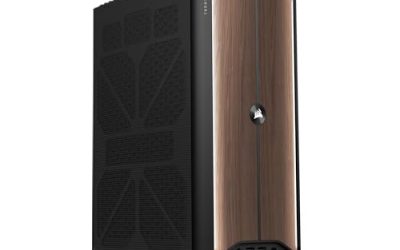
The Corsair ONE i500 in this configuration is the premium, performance-first option here. Its Amazon listing title specifies a liquid-cooled Intel Core i9-14900F processor, a liquid-cooled NVIDIA GeForce RTX 5070 graphics card, 32GB of Corsair Vengeance DDR5 memory, and a 1TB M.2 SSD, in the Wood Dark finish. The listing details give a graphics memory size of 12GB and the model number CS-9020056-NA.
Liquid cooling for both major heat sources is the defining idea. In a compact chassis, giving the processor and graphics card dedicated liquid cooling is a direct response to the sustained-performance problem, and it suits a system intended for 1440p high-refresh gaming or very demanding 1080p play. The Core i9-14900F also gives this configuration the most processor headroom in the guide, appealing to players who combine gaming with streaming or content creation.
The trade-off is flexibility. A highly integrated system like this is bought as a finished machine, and Corsair’s own description of the i500 highlights upgradeable memory and storage rather than a graphics card swap, so plan the configuration at purchase. The wood-accented front panel also makes it a system designed to be visible in a living room or tidy desk setup. Check the live listing for the exact finish and specification before buying.
MSI MPG Trident AS Slim Gaming Desktop PC — Core i7-14700K, GeForce RTX 4060

This MSI MPG Trident AS configuration balances differently: a very strong processor and unusually large storage paired with an efficient graphics card for high-refresh 1080p play. Its listing title specifies a 14th-generation Intel Core i7-14700K processor with boost up to 5.6 GHz, 32GB of DDR5 memory, a 4TB PCIe NVMe SSD, and an NVIDIA GeForce RTX 4060 graphics card with 8GB of GDDR6 memory, running Windows 11 Home.
The RTX 4060 places this system most naturally at 1080p high refresh, where its efficiency suits a slim chassis and competitive settings can push frame rates high. At 1440p it becomes more settings-sensitive, particularly in games that press hard on 8GB of video memory with high textures. That defines its job rather than flaws it: processor performance, memory, and storage are generous, while the graphics tier is chosen for efficiency.
Connectivity is a strength. The specification includes three DisplayPort outputs and one HDMI output, support for multiple monitors, Wi-Fi 6E, Bluetooth 5.3, 2.5Gb Ethernet, and a mix of USB ports including Type-C connections. For a player centred on a multi-monitor desk at 1080p who wants a large game library installed on internal NVMe storage, this configuration makes a coherent case. Confirm the storage and memory figures on the live listing, because Trident AS systems are sold in several configurations under similar names.
MSI Trident 3 SFF Gaming Desktop — Core i5-11400F, GeForce RTX 3060 (11TC-069US)
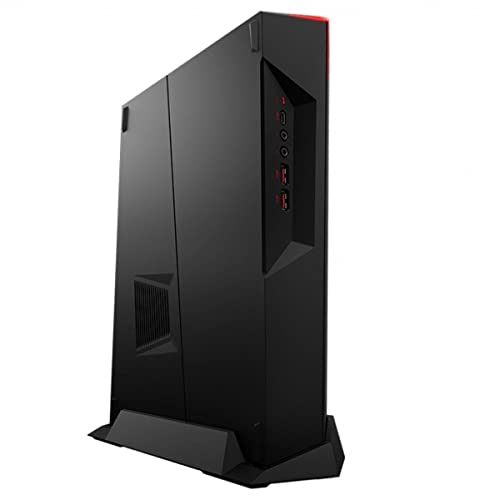
The Trident 3 11TC-069US is the smallest idea in this guide. Its chassis is about 4.72 litres, closer in spirit to a games console that can stand vertically or lie flat than to a conventional tower. This configuration specifies an Intel Core i5-11400F processor, a GeForce RTX 3060 ITX graphics card, 16GB of memory, and a 512GB SSD, with Wi-Fi 6E and USB Type-C among its listed features, and Windows 10 Home Plus as listed for this model.
That profile points clearly at 1080p gaming. The RTX 3060 ITX is a compact version of the card designed for this class of chassis, and the pairing is aimed at efficient, high-frame-rate play at that resolution, especially in competitive titles where settings are adjusted for frame rate. It is not the choice for 1440p high refresh in the most demanding games, and its 512GB of storage requires more active library management than the larger configurations above.
What it offers instead is size. A sub-five-litre desktop can move between rooms or sit beside a television without dominating the space, and that portability is a legitimate reason to choose it over a ten-litre system. Because this is an older configuration, check the live listing carefully for operating system, memory configuration, and included accessories, and judge it on its specification as listed.
Which One Should You Pick?
Choose the Corsair ONE i500 configuration if the monitor target is the most demanding here — 1440p high refresh, or 1080p at high settings with headroom — and the desktop will also handle streaming or creative work. Its RTX 5070 and Core i9-14900F pairing, liquid-cooled on both sides, is the performance-led choice.
Choose the ASUS ROG G22CH DB779 for a balanced ten-litre desktop. Its RTX 4070, Core i7-13700KF, 32GB of memory, and 1TB SSD form a well-rounded configuration for 1440p high-refresh play without moving to the premium tier, and its toolless-access design appeals if storage or memory access matters.
Choose the MSI MPG Trident AS configuration if play is mainly at 1080p high refresh, the desk uses multiple monitors, and internal storage is a priority. Its Core i7-14700K and 4TB NVMe SSD are generous, while its RTX 4060 defines it as an efficiency-focused graphics choice.
Choose the MSI Trident 3 if size and portability outweigh raw graphics tier. At about 4.72 litres it fits where the others cannot, and its RTX 3060 ITX configuration is directed at 1080p play. Accept its smaller storage and older platform as the price of that footprint.
In every case, match the decision to the monitor already owned or firmly planned. Buying a graphics tier for a 1440p display that never arrives wastes the compact-system budget, and buying an efficiency-tier card for a demanding 1440p display leads to settings compromises from the first day.
Setup Notes for a Compact High-Refresh Desktop
Place the desktop where its intakes and exhausts are unobstructed, with open space behind and beside it rather than flush against a wall or inside a closed cabinet. Connect the monitor to an output on the graphics card, not a motherboard video port, and use DisplayPort where it is the connection that supports the monitor’s full resolution and refresh rate.
After connecting, set the refresh rate explicitly in the operating system’s display settings, because a high-refresh monitor does not always default to its maximum rate. Enable any variable-refresh feature supported by both the monitor and the graphics card, so frame delivery stays smooth when the rate fluctuates. Use wired Ethernet for competitive play if the router can be reached, keep graphics drivers updated, and revisit in-game settings with frame time in mind: lowering a small number of processor-heavy settings often produces a steadier high-refresh experience than a uniform reduction across every option.
FAQ
Can a small-form-factor desktop really sustain high refresh rates?
Yes, provided the graphics tier, processor, and cooling are matched to the resolution target. The systems here use discrete RTX graphics cards and desktop processors, so the capability is there. The limit is sustained heat in a small volume, which is why cooling design, placement, and choosing an efficiency-appropriate GPU for the smallest cases matter.
Is 8GB of video memory enough for high-refresh gaming?
At 1080p, 8GB is workable for many games, especially competitive titles run at settings chosen for frame rate. At 1440p with high texture settings it becomes tighter sooner, which is why the 1440p-focused systems here use cards listed with 12GB. The answer depends on resolution and texture settings more than on refresh rate alone.
Should a compact gaming desktop have 16GB or 32GB of RAM?
16GB is a practical minimum for gaming on its own. 32GB, as fitted to three of the four configurations here, gives more room for streaming software, voice chat, browsers, and larger games running together, and reduces the chance that a memory upgrade becomes an early necessity in a system with only two slots.
Can the graphics card be upgraded later in a small desktop?
Sometimes, but it should never be assumed. The replacement card must fit the case, suit the power supply, and connect correctly in a tight interior. Storage and memory are usually the more realistic upgrades in this category, so buy the graphics tier that matches the intended monitor for the foreseeable future.
Does liquid cooling make a compact desktop better for gaming?
Liquid cooling can help a compact system manage processor and graphics heat in a controlled way, as in the Corsair ONE i500 configuration that liquid-cools both. It does not change the underlying hardware tier, and an air-cooled system with an efficiency-matched GPU can still be the right choice. Treat cooling as part of sustained performance and noise, not as a performance feature on its own.
What refresh rate should a small desktop target?
Match it to the monitor and the games played. Competitive players often value 240Hz at 1080p, while many players of larger, story-focused games prefer 144Hz or 165Hz at 1440p. The desktop, monitor, display cable, and in-game settings all have to support the same target for the result to feel fast.